Affiliate dashboard
Learn how to navigate your affiliate dashboard, access promotional tools, and track commissions.
Overview
If a school owner has added you as an affiliate, you can use the Affiliate Dashboard to:
- Set up your payout details
- Track commissions and sales
- Access affiliate links and promotional materials
- Generate custom affiliate links
Once added as an affiliate, you'll receive an email confirmation.
- If you're a new user, you’ll be prompted to create an account.
- If you're an existing student, you can log in with your current credentials.
Accessing your dashboard
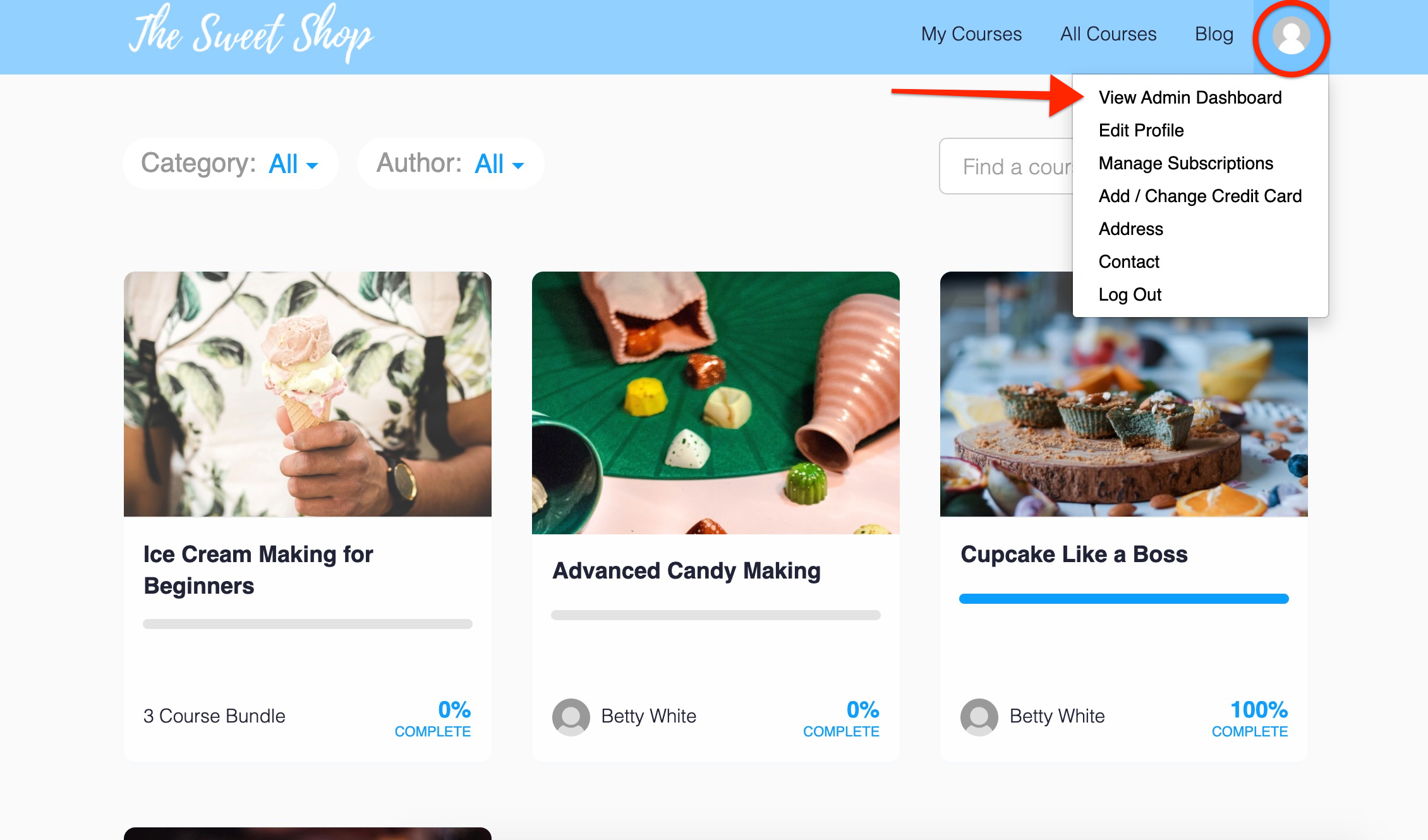
To access your Affiliate Dashboard:
- Log in to the SharperTrades school where you’re an affiliate.
- Click your profile icon and select View admin dashboard.
Within the dashboard, you'll see:
- Commission rate – Your commission percentage, set by the school owner
- Affiliate code – Automatically applied to your links to track referrals
-
Cookie period – How long your referrals are tracked (in days)
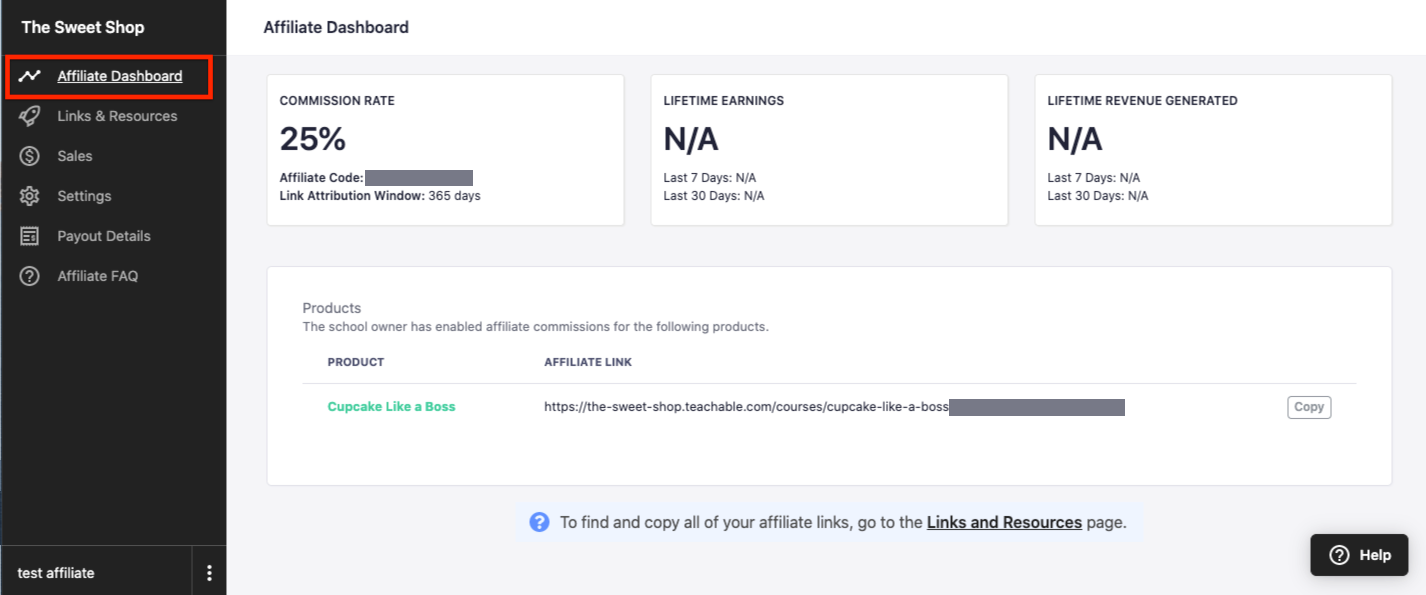
You can also view your earnings for the:
- Last 7 days
- Last 30 days
- All time
If the school owner has assigned specific products to your account, you’ll see pre-generated affiliate links with your code applied. Click Copy next to a product to share it with your audience.
Affiliate links and resources
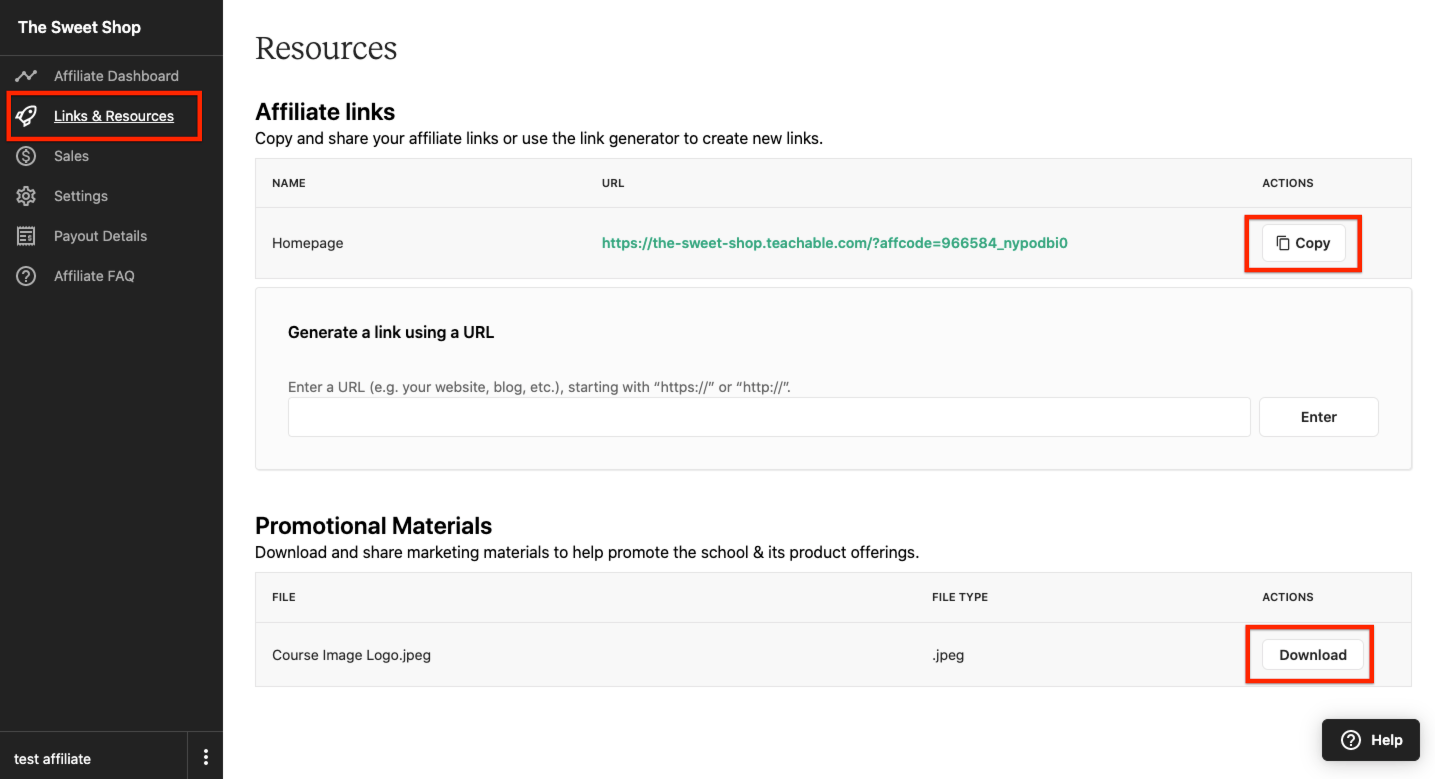
Go to the Links & resources tab to:
- View affiliate links created by the school owner
- Generate custom affiliate links
- Download promotional materials
Affiliate link generator
To generate a custom link:
- Copy the URL of the SharperTrades page you want to link to (e.g., homepage, sales page, checkout).
- Paste the URL into the Link Generator.
- Click Generate.
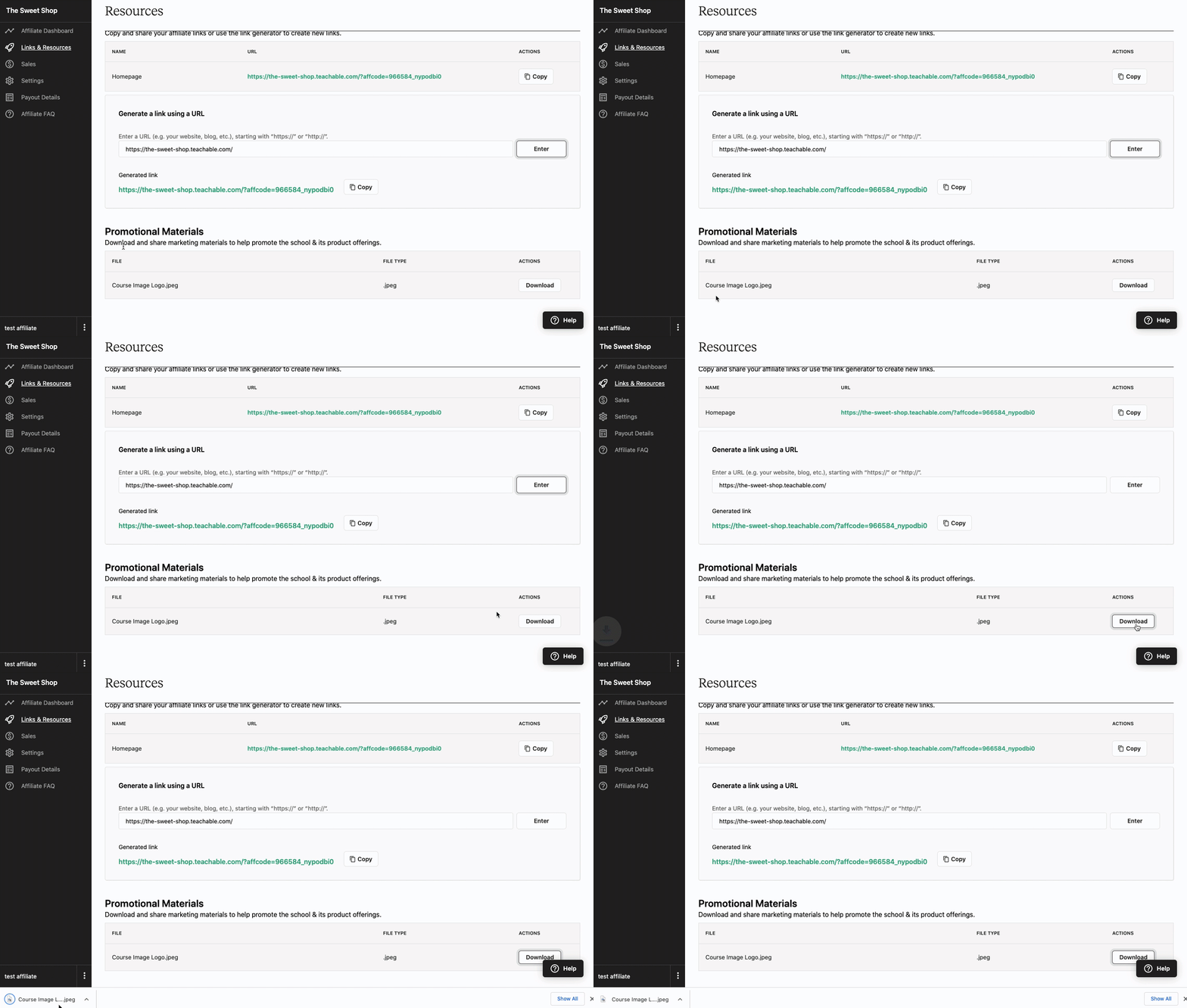
Note: Be sure your link starts with http:// or https://.
External landing pages
If allowed by the school owner, you can generate affiliate links for external URLs (not hosted on SharperTrades). To do this:
- Paste the external URL into the Link Generator.
- Click Enter.
Caution: Affiliate tracking only works on SharperTrades checkout pages. External checkout pages will not track sales.
Promotional materials
School owners may upload promotional assets such as:
- Images or logos
- Flyers or PDFs
- Social media templates
To download a resource, click the Download button beside the file.
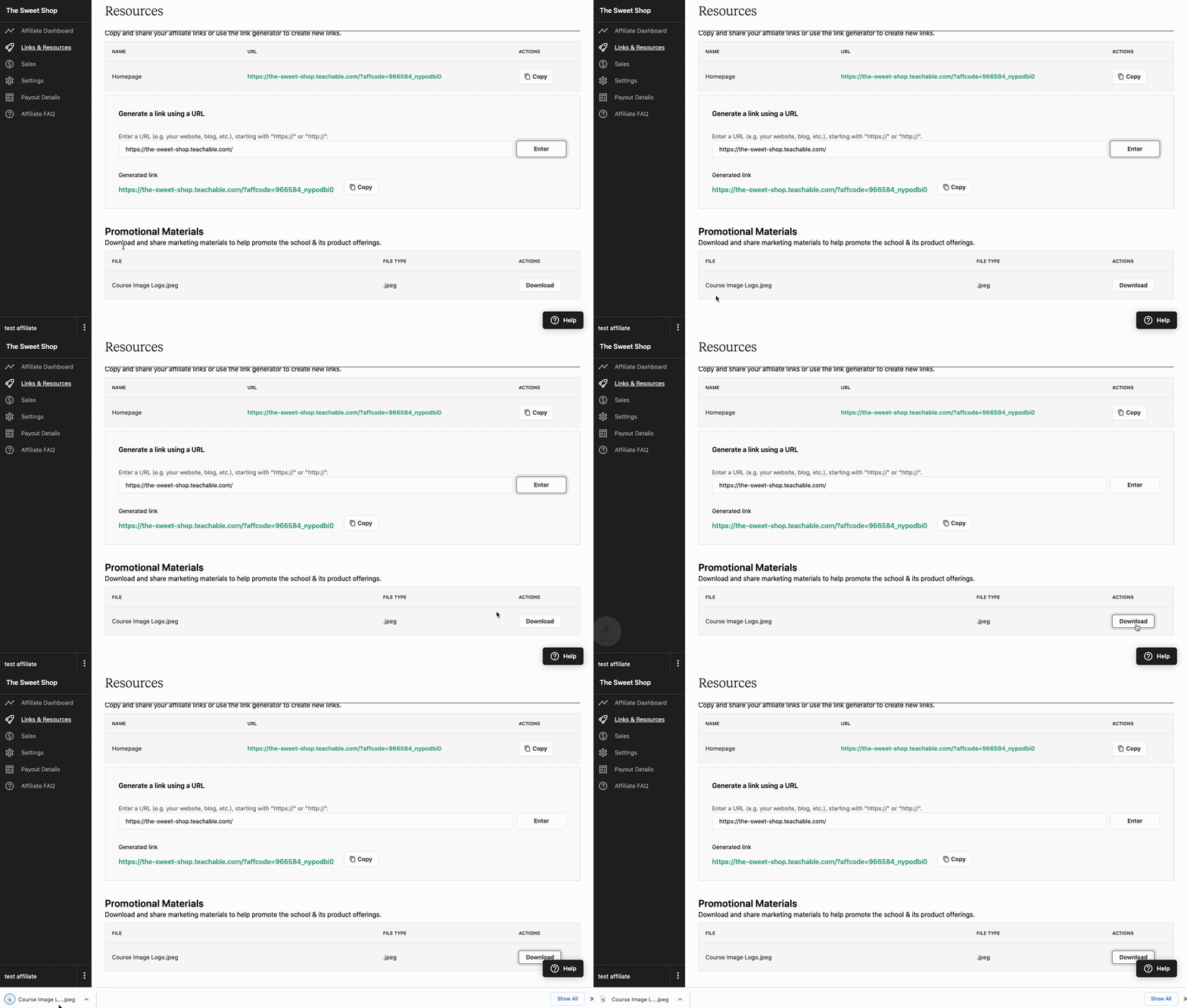
Note: If no materials are available, contact the school owner directly.
Sales and payouts
Sales
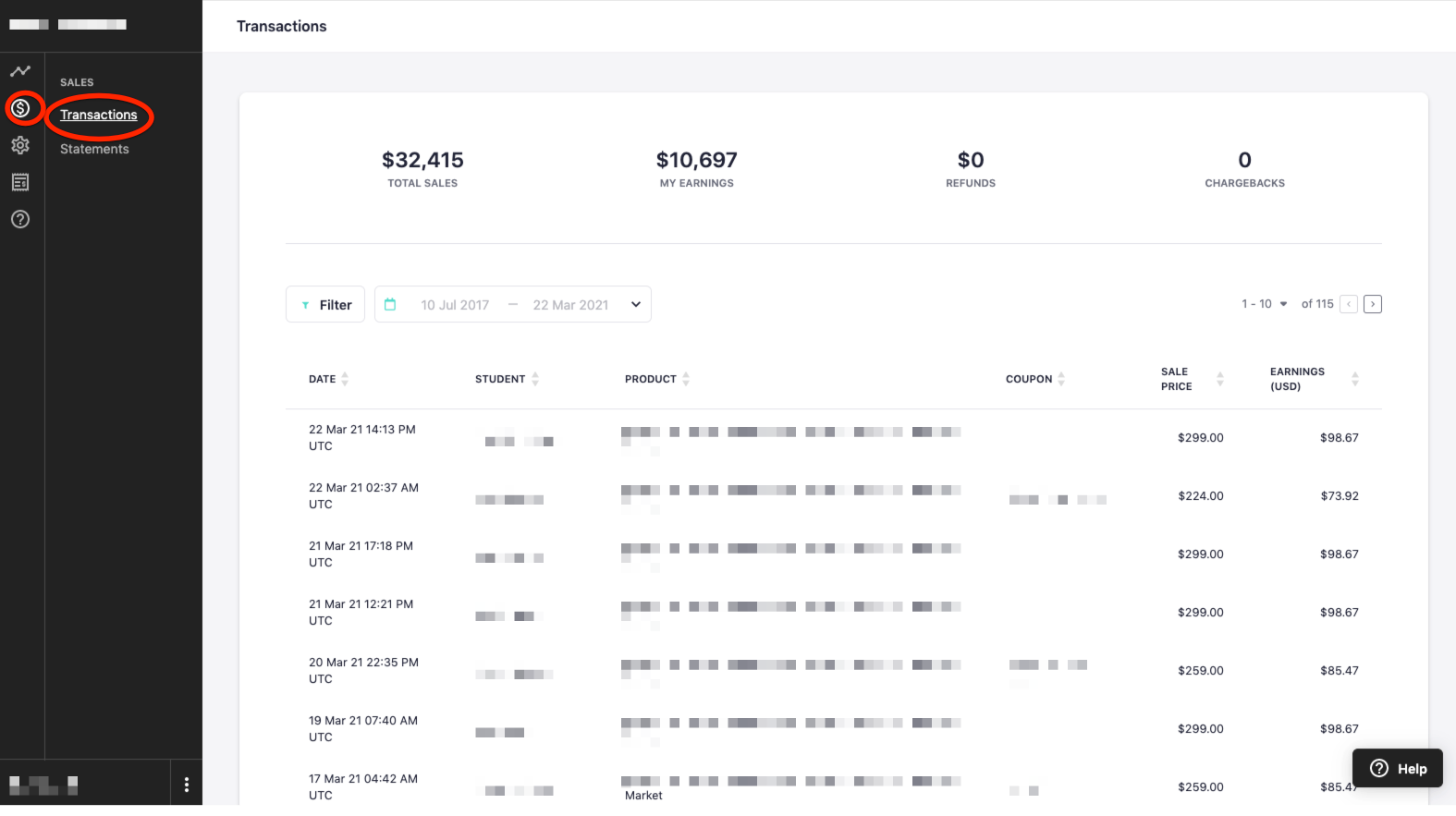
In the Sales tab, you'll see a history of all credited affiliate sales.
In the Transactions tab, each record includes:
- Sales price – Full price of the product
- Earnings – Your commission from the sale
Click a transaction to view detailed payout information.
Statements
The Statements tab summarizes monthly earnings. Statements become available 20 days after each month ends.
Note: Affiliate commissions may be restricted to specific products. Contact your school owner if you have questions.
Settings
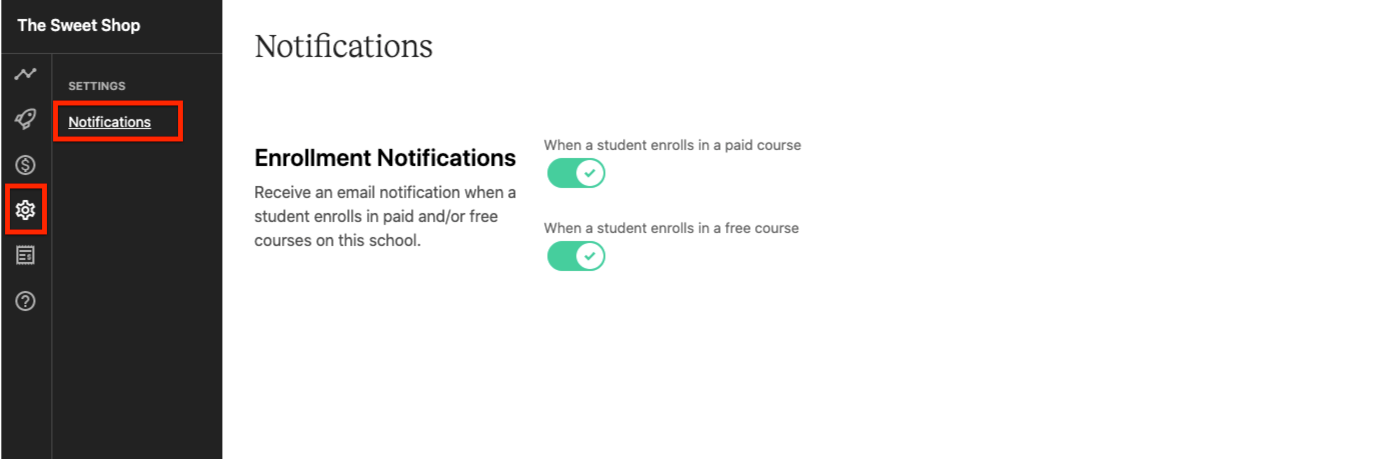
In the Settings tab, you can toggle enrollment notifications on or off for:
- Paid product enrollments
- Free product enrollments
Payout details
Affiliate payouts depend on how the school processes payments:
If the school uses SharperTrades’s Monthly Payment Gateway with BackOffice enabled:
- Payouts are made via PayPal.
- You’ll be prompted to add your PayPal info in the Payout details tab.
- Payments are issued on the 1st of each month, for sales made at least 30 days prior.
Example: On March 1st, you’ll receive payouts for January sales.
If your lifetime earnings exceed $100, you’ll be asked to submit a tax form. Payouts are held until completed.
If the school uses custom payment gateways or has BackOffice disabled:
- The school owner handles payouts directly.
- Contact the school owner to arrange payment.
Affiliate FAQ
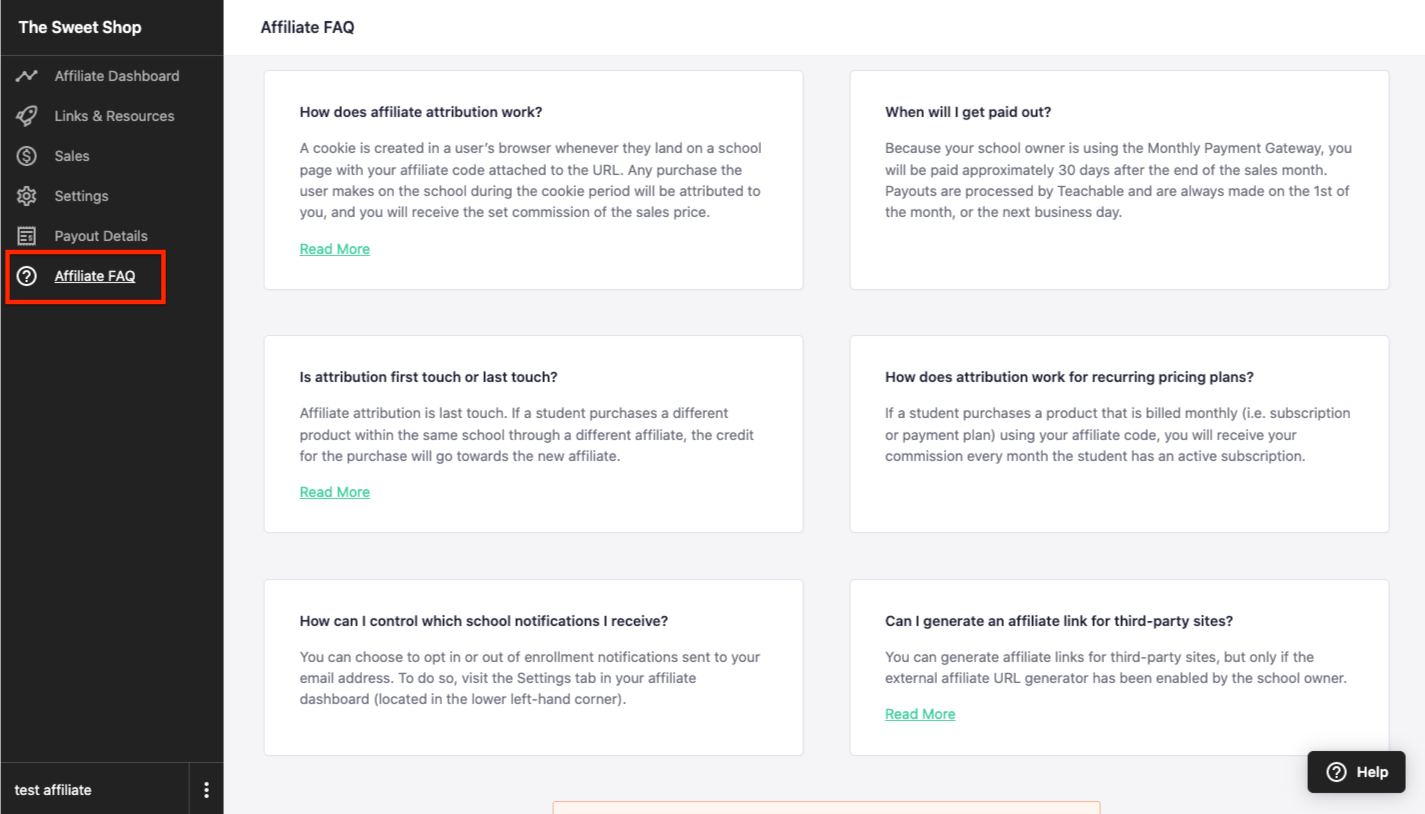
In the Affiliate FAQ tab, you’ll find:
- General program details
- Common questions and answers
- Support guidance for affiliates